Psono: Open-Core alternative to LastPass Teams in 2026
Psono is a team password and secrets manager with end-to-end encryption, API key management and browser extensions, as a self-hostable alternative to LastPass Teams.
Core is open source, but advanced features or enterprise support may be behind a paid tier — check the license.
Audit Snapshot
License — Not verifiable on GitHub
GitHub — Active
Latest release — Not available
Docker Compose — Partial
Production — Not production-tested by AltFreeStack
Psono vs. LastPass Teams
Pros
- Also covers infrastructure secrets, not just personal passwords
Things to consider
- Smaller community than Vaultwarden or Bitwarden
Quick Docker installation guide
Copy this docker-compose.yml, adjust the example passwords and run docker compose up -d on your server. See the full step-by-step guide →
💡 Official SaaS or self-hosted with AltFreeStack?
- On the official cloud: a recurring monthly fee and usage limits on LastPass Teams.
- On your own VPS: the core is free to self-host on your own server — no more monthly SaaS fee, though some advanced features stay behind a paid plan.
version: "3.9"
services:
  psono:
    image: psono/psono-server:7.4.4
    restart: unless-stopped
    ports:
      - "8080:8080"
    environment:
      - DATABASE_HOST=psono-db
      - DATABASE_USER=psono
      - DATABASE_PASSWORD=change-me-postgres-password # must match POSTGRES_PASSWORD below
    depends_on:
      - psono-db
  psono-db:
    image: postgres:15-alpine
    restart: unless-stopped
    environment:
      - POSTGRES_USER=psono
      - POSTGRES_PASSWORD=change-me-postgres-password # REQUIRED: generate a random secret before first run
      - POSTGRES_DB=psono
    volumes:
      - psono_pg_data:/var/lib/postgresql/data
volumes:
  psono_pg_data:
🚀 Deploy in 1 command
Recommended for beginnersCopy this single command and paste it into your freshly created VPS's console (Vultr, DigitalOcean...). It downloads the script, prints it to your screen so you can see exactly what it's about to do (never a blind direct pipe), and only then installs Docker if needed, writes the files with secrets already generated, and starts everything — no nano, no pasting code blocks.
curl -sSL ".../api/deploy?stack=psono" -o deploy.sh && cat deploy.sh && bash deploy.shThis docker-compose corresponds to an actively maintained project — last commit today.
This docker-compose not working for you? Report it on GitHub →Technical profile
- License
- AGPL-3.0
- Category
- Password Managers
- Replaces
- LastPass Teams
- Tech stack
- PythonDjangoPostgreSQL
Under the hood
Database
PostgreSQL
Language
Python (Django)
Platforms
Web · Desktop (Mac/Win/Linux) · Mobile (iOS/Android)
Key features
- Secret and API key management alongside passwords
- End-to-end encryption
- Extensions for every browser
Preview
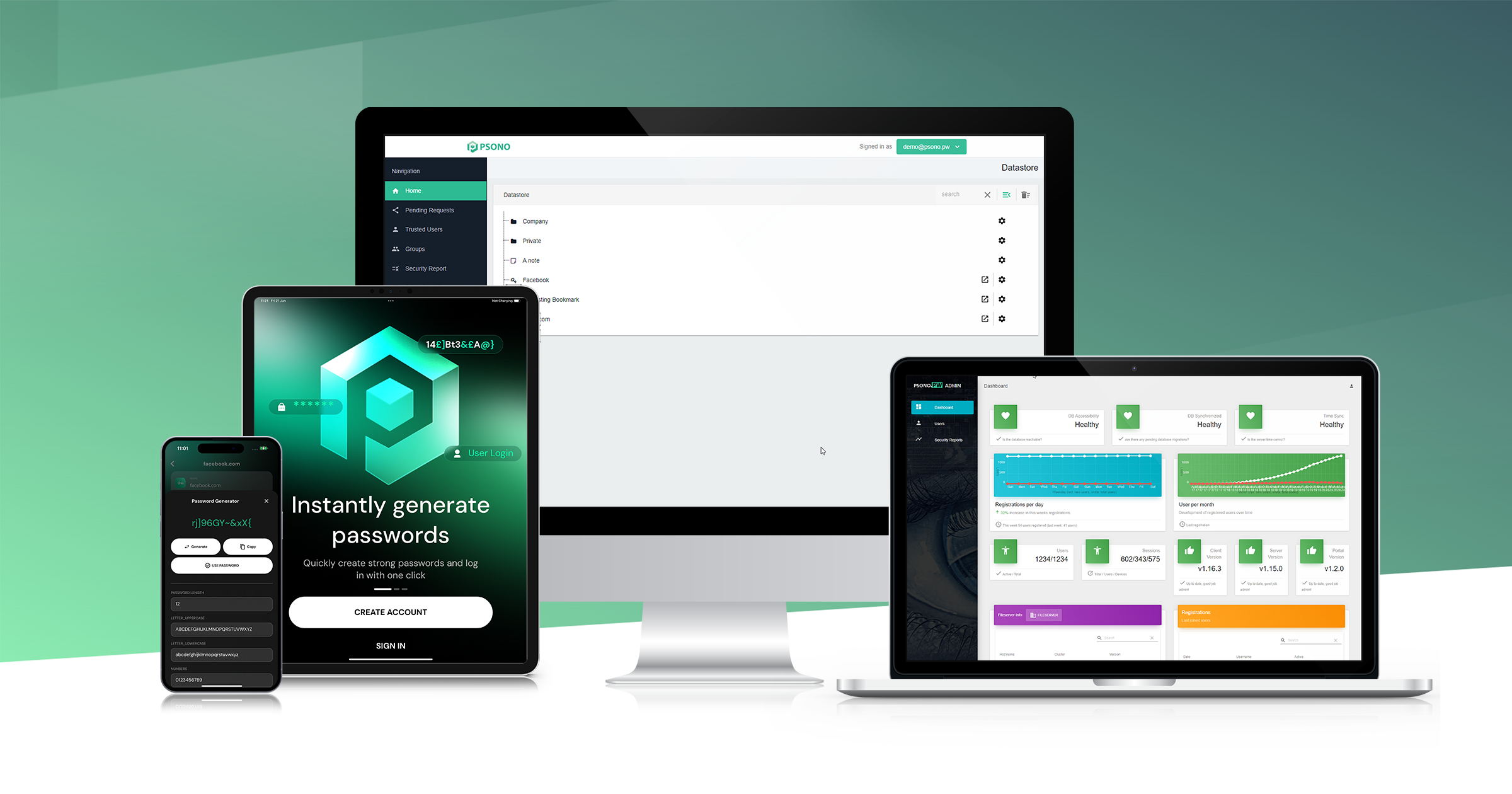
Public image provided by Psono on its own website.
💾 Backups in 3 steps (Day 2)
As long as the ./data folder (the "volume" mapped into the container) exists on your server, your data survives any restart or container update — that's the only thing you need to back up.
1. Create a compressed backup on the server
tar -czvf backup-$(date +%F).tar.gz ./data2. Download it to your computer
From your computer's terminal (not your server's):
scp root@YOUR_IP:~/app/backup-*.tar.gz ./3. Restore in case of emergency
tar -xzvf backup-file.tar.gz🌐 Connect your domain with free SSL
Step 1 — Set up the DNS
In your domain registrar's dashboard (Cloudflare, Namecheap, GoDaddy...), create a record:
- Type
- A
- Name/Host
- @ (root domain) or a subdomain, e.g. app
- Content/Value
- Your server's public IP
Wait 5 to 15 minutes for the record to propagate across the internet.
Step 2 — Automatic reverse proxy with Caddy
One single file, no Nginx config or manual certificates — Caddy issues and renews Let's Encrypt HTTPS on its own.
Create a file called Caddyfile:
yourdomain.com {
    reverse_proxy localhost:8080
}
Start Caddy with this command (pulls the image and runs it in the background):
docker run -d -p 80:80 -p 443:443 --name caddy --restart always -v $PWD/Caddyfile:/etc/caddy/Caddyfile -v caddy_data:/data caddy